Reduce Clutter by Combining Panels

TLDR: by default Illustrator panels are displayed in groups of three. While working, the screen quickly becomes cluttered with unused panels.

By grouping all the panels together, the workspace remains open and uncluttered — only one panel is ever open at a time, and opening a new panel automatically closes the previous panel.

This tip is for experienced users — it requires frequent use of keyboard shortcuts.

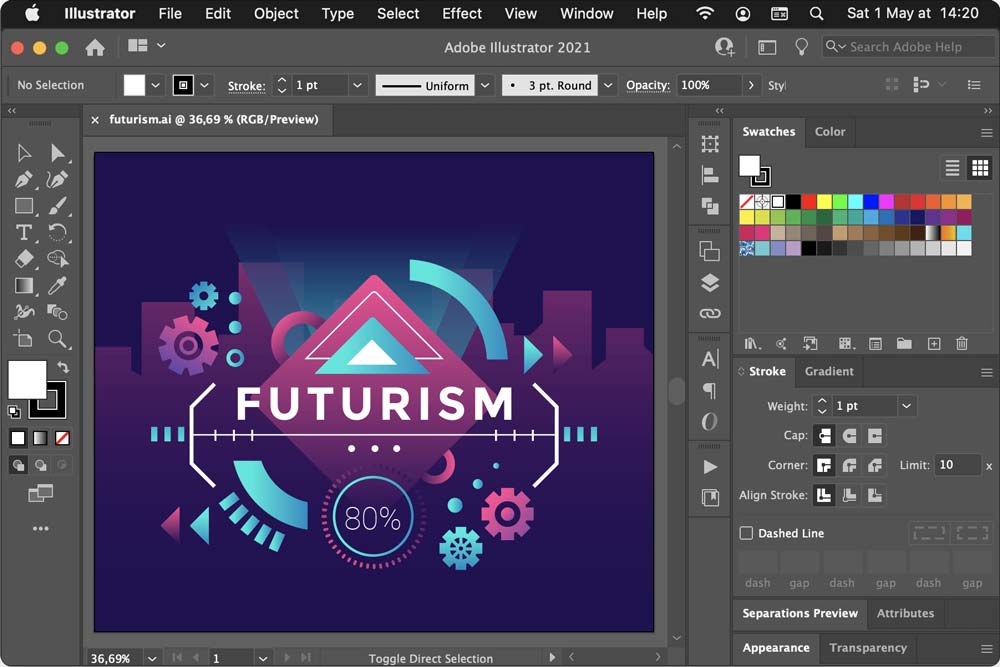
When you open a file in Illustrator, this is what you see:
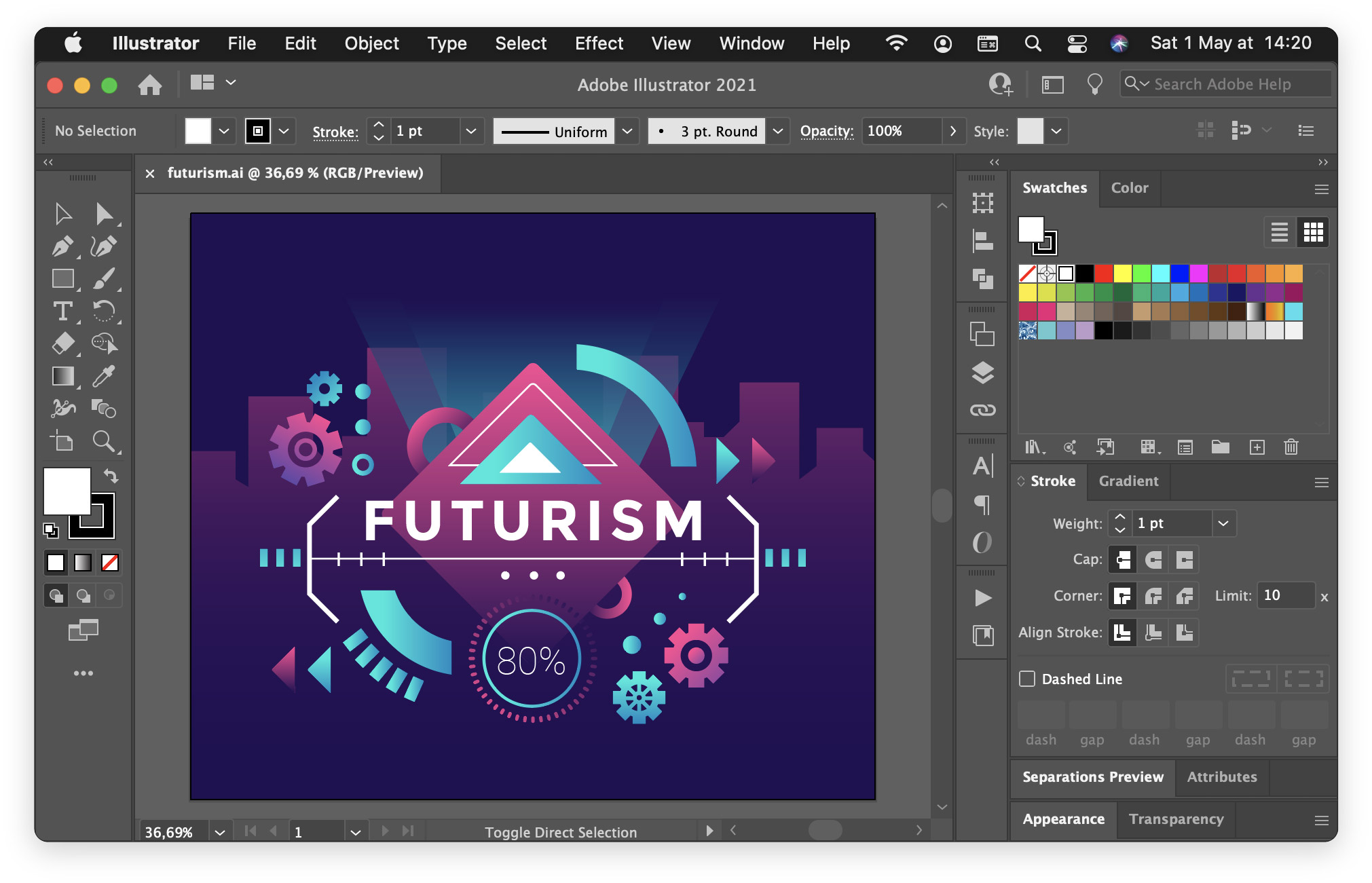
A large part of the screen is occupied by tools and panels.


By default, the panels are shown in groups of two or three (Swatches and Color in the above image). The defaults never worked very well for me; the few panels I used all the time were interspersed among many panels I didn’t need at all.

I have been using Illustrator since 1995, and I have tried lots of different ways to organize the panels. I’ve stacked them and combined them in countless systems of frequently combined actions, related panels etc.

In the end, the panels always ended up getting scrambled and my Illustrator experience was needlessly chaotic.


About a year ago I had a thought: closing panels I don’t need takes a significant amount of time; if I combine all the panels into one then opening one panel will automatically close the previous panel!

Then I thought: no that’s crazy.

Then I thought: well, I’ll try it for a few days and when it doesn’t work I’ll put it back.

This is what it looks like:
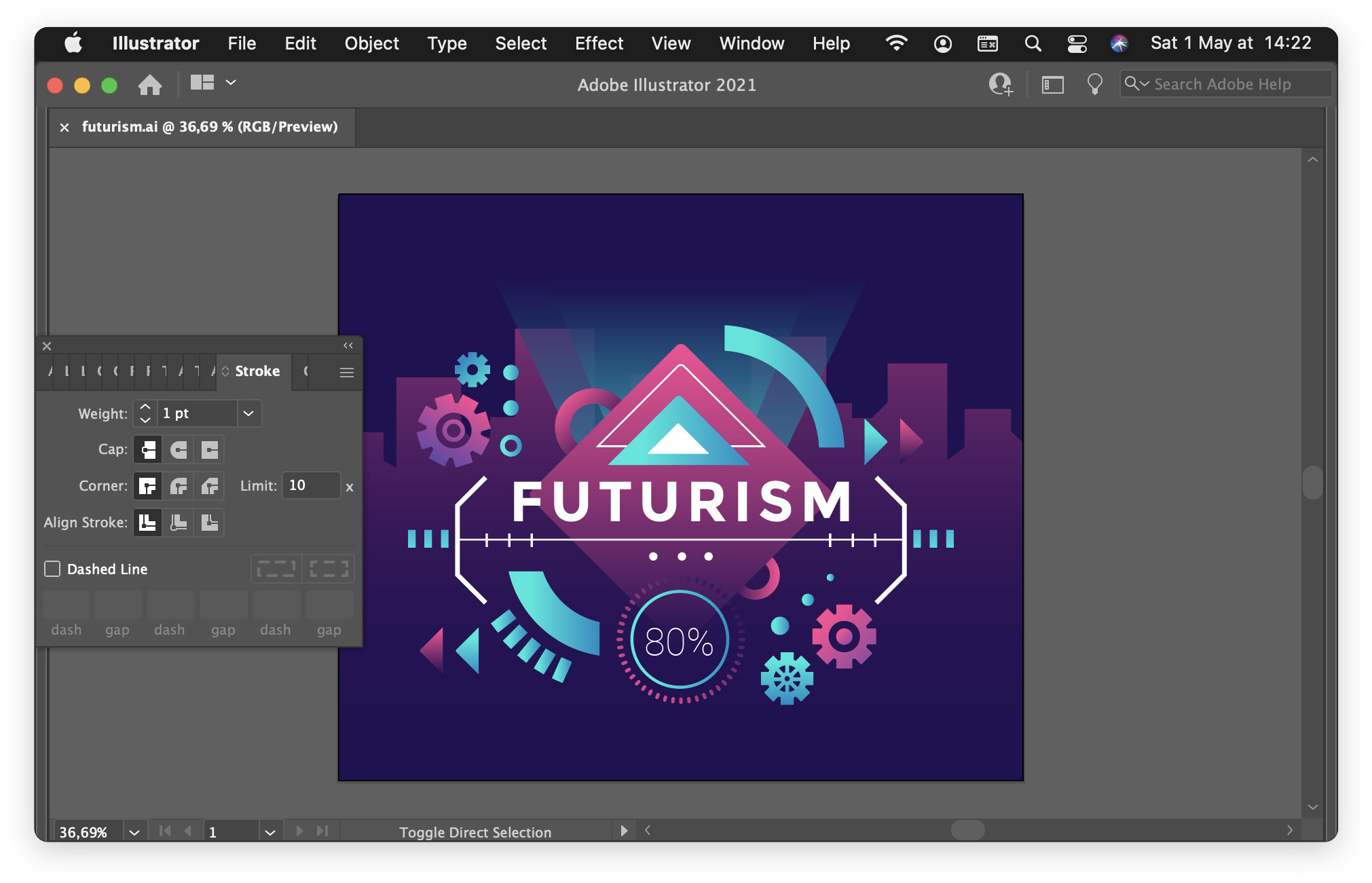
As you can see, choosing panels by clicking on the title bar is no longer possible — you have to know the keyboard shortcuts to get to the panel you want.

But it’s glorious! I can see the whole document, and each time I open a panel I need, the previous panel disappears!

Filed under: not for everyone.
A Gaussian Blur with Vectors

TLDR: for various reasons, the Effect › Stylize › Drop Shadow… effect cannot always be used. The best alternative has been Illustrator Blends, but the blending is too abrupt and visual quality suffers.

A custom ActionScript redistributes the opacity values of an Illustrator Blend, making it look almost exactly like the bitmapped Stylize effect.

Stack Exchange post · download this script

I use a lot of drop shadows in my design work. Although Illustrator supports the creation of drop shadows with Effect › Stylize › Drop Shadow…, this is usually unusable for me, for a few reasons:

  • I’m usually building SVG web pages, and the drop shadows are stored as placed PNG images that can’t be included in the page
  • I’m creating a logo in a .ai file that will be placed in another document, and any placed bitmapped images are rendered as external PNG images
  • I’m creating assets for a macOS application and external linked images aren’t used

SVG does include the ability to create drop shadows via filters, but this has a couple of serious drawbacks:

  • SVG filters are rendered as pixelated images — the incredible precision of vector-based artwork is lost
  • SVG filters significantly slow down page drawing in Illustrator and make modifying a complex page unwieldy

Blend-based Shadows

The best solution, if it worked, would be Illustrator blends:

  • they’re easy to use
  • they’re extremely lightweight
  • they work perfectly with SVG pages and placed .ai files

The problem with blends is just that they look bad:

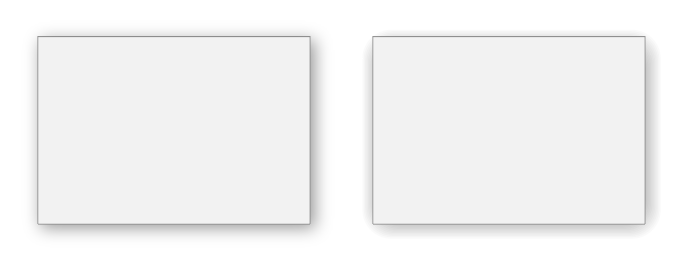
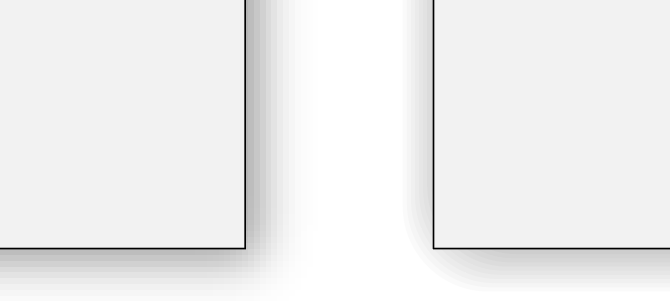
On the left is the Effects › Stylize shadow, and on the right is a blend. The edges of the blend are much less soft:

There’s no reason this should be the case. It’s just that Illustrator blindly calculates all the intermediate steps of the blend at even intervals.


A Better Blend

So I wrote a simple ActionScript that redistributes the steps of a blend along the arctangent curve.

It’s a nice S-shaped curve that’s easy to calculate in Javascript.

Here’s the result — at left is a Photoshop blur, in the middle is an Illustrator blend, and at right is the ActionScript:

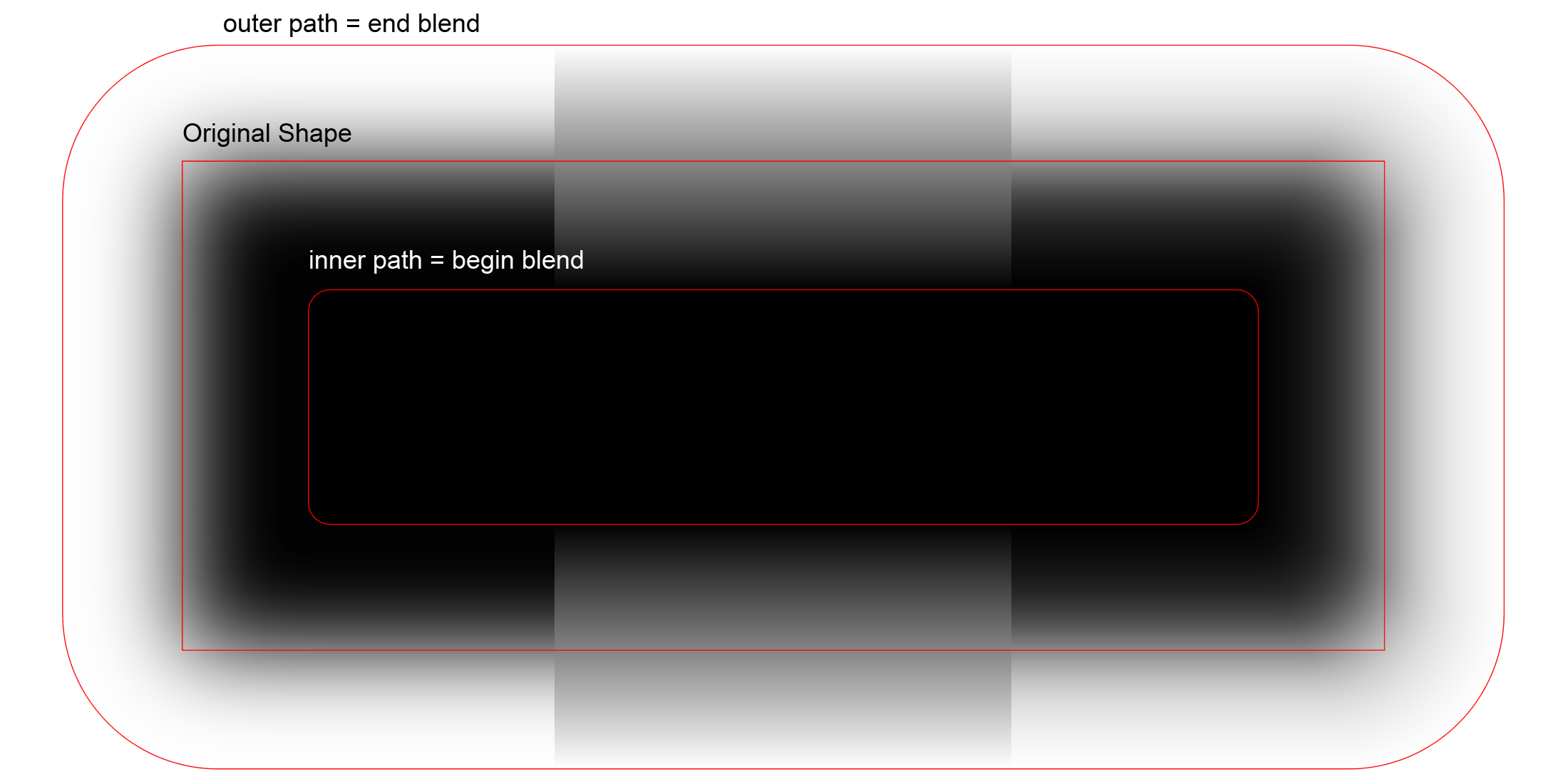
These are the paths that were used to create the blends:

You can see that the blend in the middle looks nothing like the Photoshop blur. However, the corrected blend at right looks really good.


In Real Life

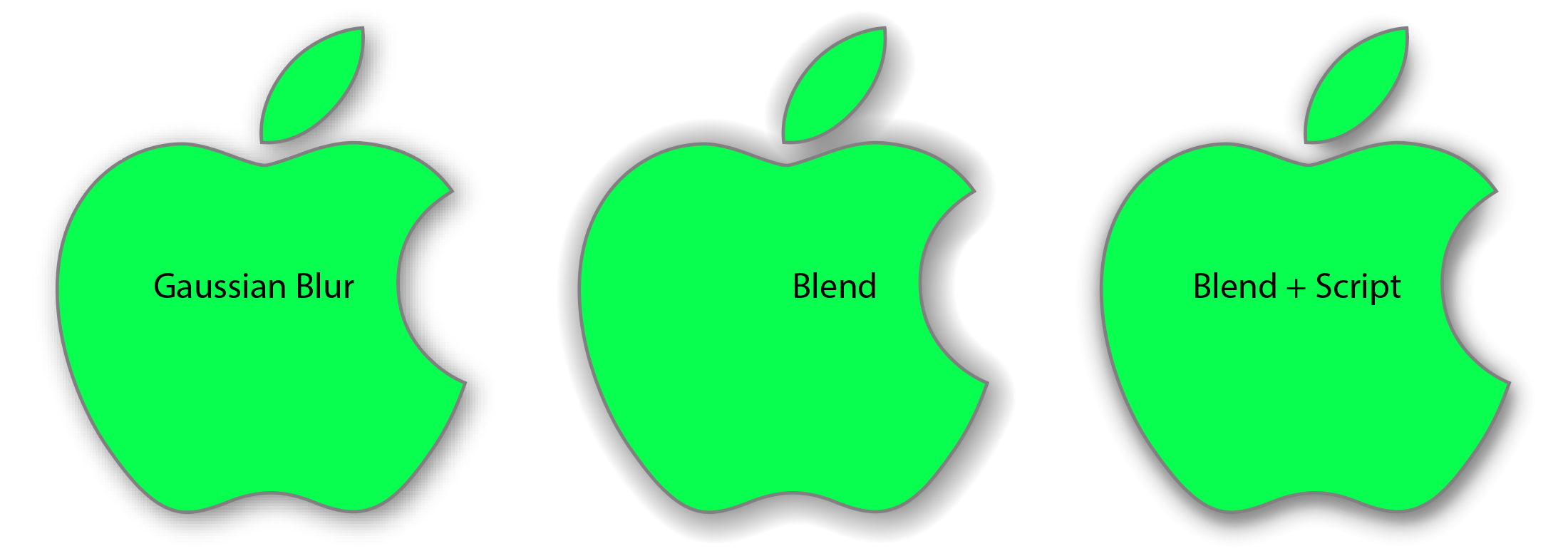
How is this useful in real life? Here’s an example:

I’ve made the shadows a bit darker than usual so that the differences stand out.


Results will be much better when the beginning and ending paths of the blend have the same number of anchor points, distributed in the same manner.

As long as the outside path is generated automatically (Object › Path › Offset Path, with Joins: Round, the results are pretty good.

Stack Exchange post · download this script

It’s not the Traffic Lights

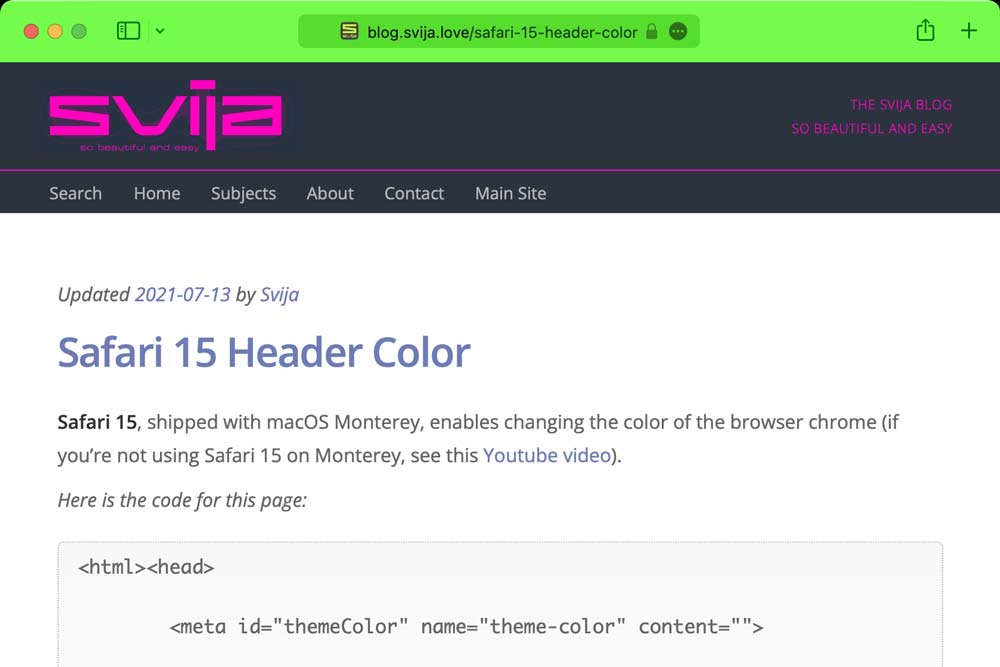
Safari 15, shipped with macOS Monterey, enables changing the color of the browser chrome (if you’re not using Safari 15 on Monterey, see this Youtube video).

On seeing the previous page, some people noticed that the color red is apparently skipped — when red is specified, the browser chrome returns to its normal gray color.

The speculation was that colors that matched the three traffic light buttons (close, minimize and maximize) would be disallowed. However this page shows that this is not the case.

Here is the code for this page:

<html><head>

	<meta id="themeColor" name="theme-color" content="">

</head><body><script>

	var traffic = ['#ED6A5E', '#F4BF4F', '#61C554']

	var delay = 500;
	var current = 0;

	function setHeaderColor(){

		current += 1;
		if (current > 2) current = 0;

		var colorStr = traffic[current];
		themeColor.content = colorStr;
	}

	setInterval(setHeaderColor, delay);

</script><pre id="textBlock" style="font-size:30px;">

  Needs Safari 15

</pre></body></html>

Stack Overflow question.

Safari 15 Header Color

Safari 15, shipped with macOS Monterey, enables changing the color of the browser chrome (if you’re not using Safari 15 on Monterey, see this Youtube video).

Here is the code for this page:

<html><head>

	<meta id="themeColor" name="theme-color" content="">

</head><body><script>

	var delay = 50;
	var increment = 5;
	var current = 0 - increment;

	function setHeaderColor(){

		current += increment;
		if (current > 360) current = 0;

		var colorStr = 'hsl('+current+',100%,50%)';
		themeColor.content = colorStr;
		textBlock.style.color = colorStr;
	}

	setInterval(setHeaderColor, delay);

</script><pre id="textBlock" style="font-size:30px;">

  Needs Safari 15

</pre></body></html>

Stack Overflow question.